
The LinkForce.io Playbook
How link builders actually use LinkForce.io
A step-by-step, screenshot-by-screenshot guide: from setup to a repeatable link building routine. Eight parts, every step actionable.
First, how LinkForce and LinkForce.io fit together
LinkForce is the community, a Slack workspace of link builders and SEOs who exchange links, guest posts, and intros.
LinkForce.io is the tool that powers that community. It connects the pages you want to rank, the placement ideas that point to them, the partners you work with, and the live links you have earned, plus access to the member directory.
You drive it from three surfaces that all share one database: the web app, the Chrome extension, and Slack slash commands. The rest of this playbook shows the workflow end to end.
Get set up
Account, access, and the lay of the land, in about 5 minutes.
Sign up and verify with Slack
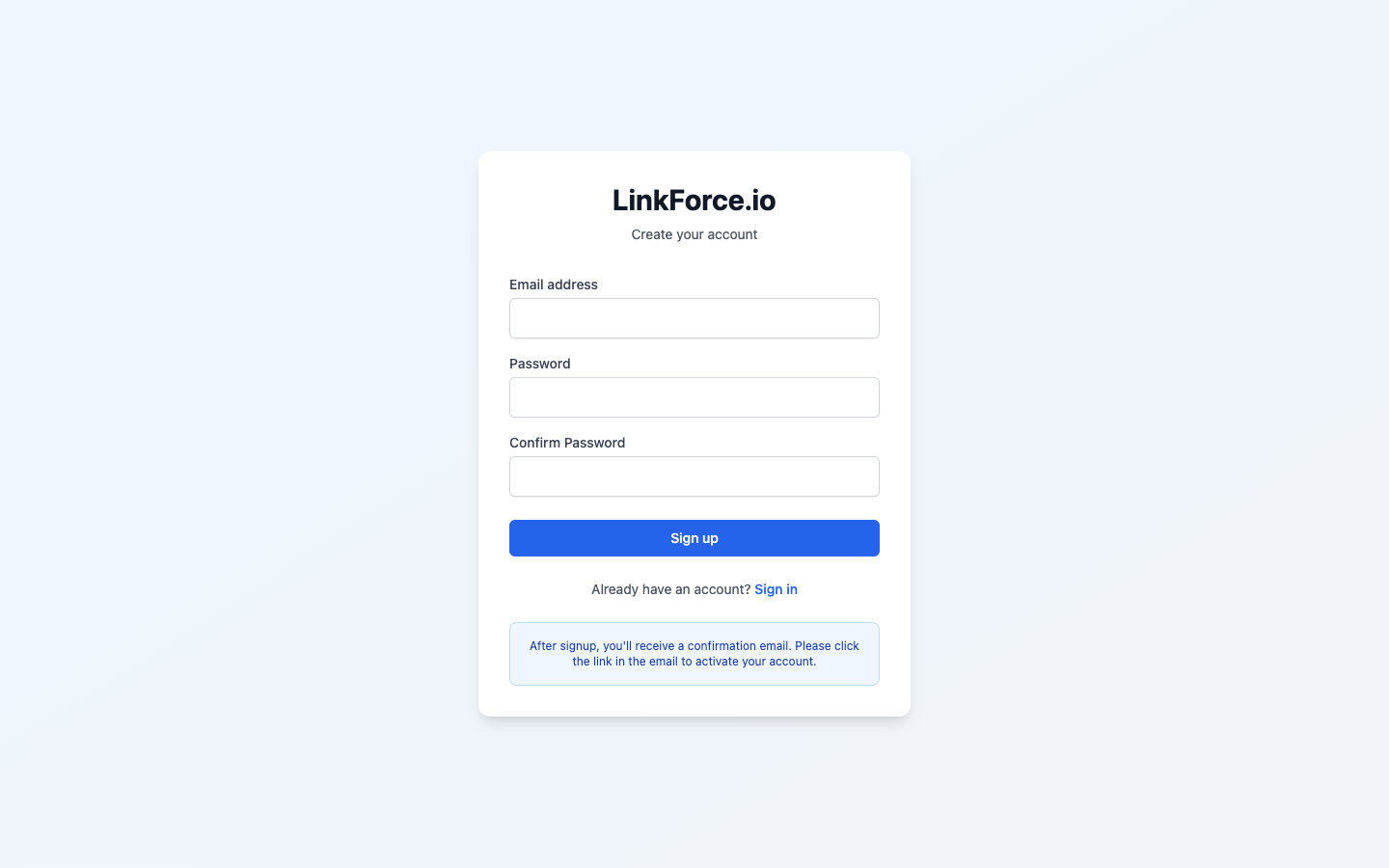
LinkForce.io is open to members of the LinkForce Slack community. Signup verifies you against Slack, so use the same email for both.
- Go to linkforce.io and click Sign up.
- Use the exact email address that is on your LinkForce Slack profile.
- If verification fails, confirm your Slack profile is active and the email matches, then try again.
Know what Free vs Pro unlocks
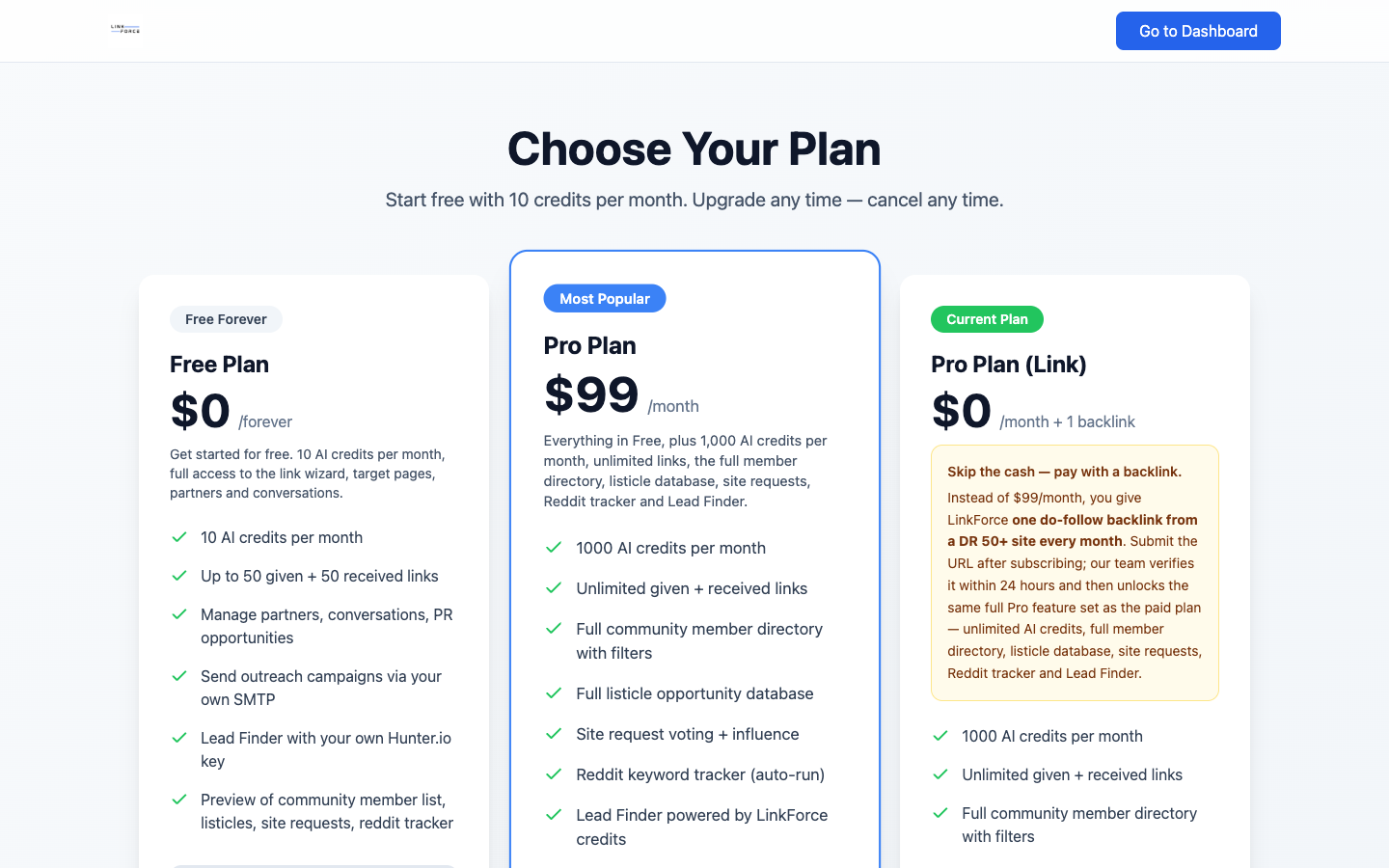
LinkForce runs on AI credits. The free plan is enough to learn the workflow; Pro removes the limits and unlocks the research + community features.
- Free: 10 AI credits per month, full access to the Link Wizard, target pages, partners, and conversations.
- Pro: 1,000 AI credits per month, unlimited links, the full member directory, listicle database, site requests, Reddit tracker, and Lead Finder.
- There is also a backlink plan: pay with one do-follow DR 50+ backlink per month instead of cash to unlock the full Pro feature set.
Take the dashboard tour
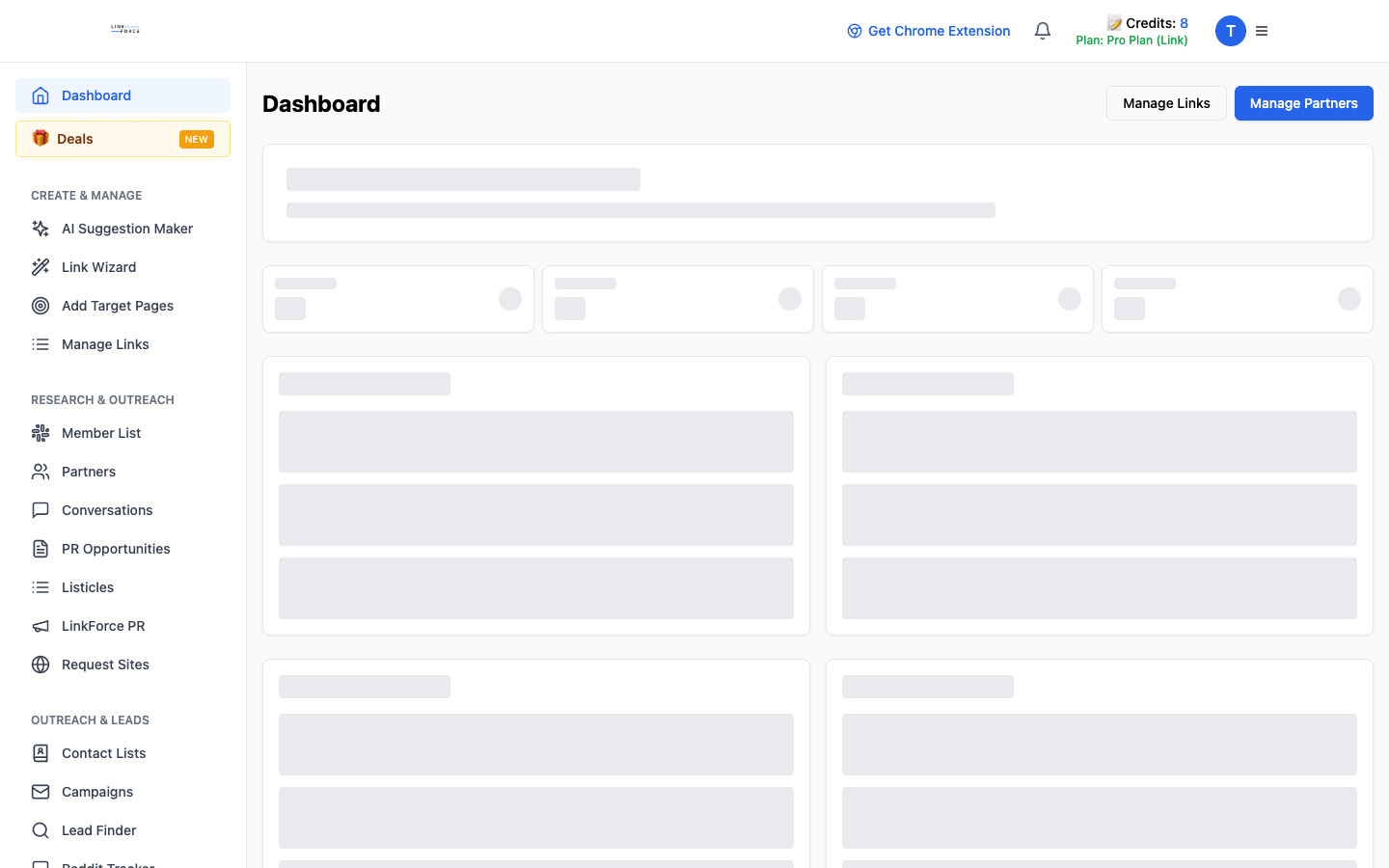
The dashboard is your daily pulse check and a built-in Getting Started checklist that walks you through the core setup.
- Work through the Getting Started checklist; it mirrors this playbook (members, target pages, enrichment, Link Wizard, and more).
- Use the left sidebar to reach every tool: Create & Manage, Research & Outreach, and the community features.
- Scan the dashboard daily to keep outreach moving and catch stale items.
Install the Chrome extension
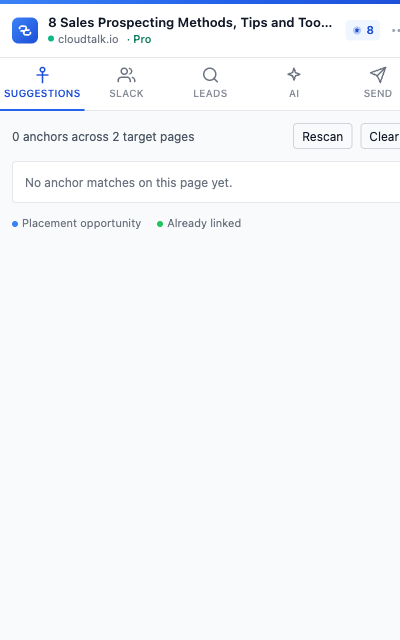
The extension brings LinkForce onto every page you browse and reads your session from any open linkforce.io tab.
- Install the LinkForce Chrome extension and pin it.
- Open the popup. Once you are logged into linkforce.io it is logged in too.
- You now have five tabs: Suggestions, Slack, Leads, AI, and Send.
Define your targets
Your target pages drive every suggestion across the whole app.
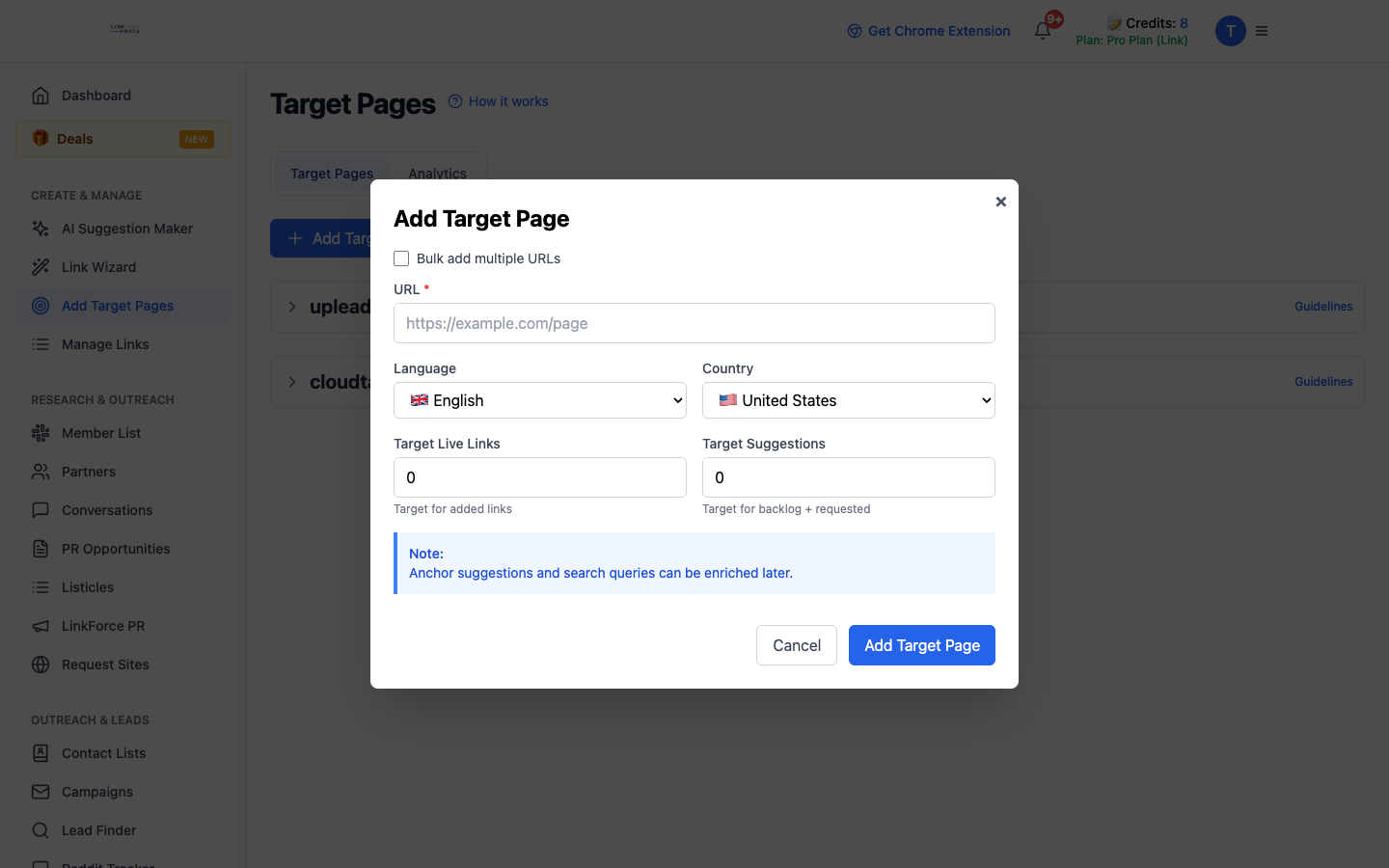
Add your target pages
Target pages are the URLs you want backlinks to. Everything else in LinkForce points back to them.
- Open Add Target Page and enter the URL you want to build links to.
- Set the page language and country so suggestions and outreach match the right market.
- Add the keywords this page should rank for, then start with your priority money pages.
Let enrichment generate anchors and search queries
Once a target is saved, enrichment fills in the anchor suggestions and search queries LinkForce uses to find placement opportunities. You do not write these by hand.
- After adding a target, let enrichment run so it can derive natural anchor variations and search queries from the page.
- Re-run enrichment whenever you change the page messaging, keywords or goals.
- Review the generated anchors and queries before relying on them for large suggestion runs.
Find link opportunities
Three ways to surface placements: AI, the Link Wizard, and the extension.
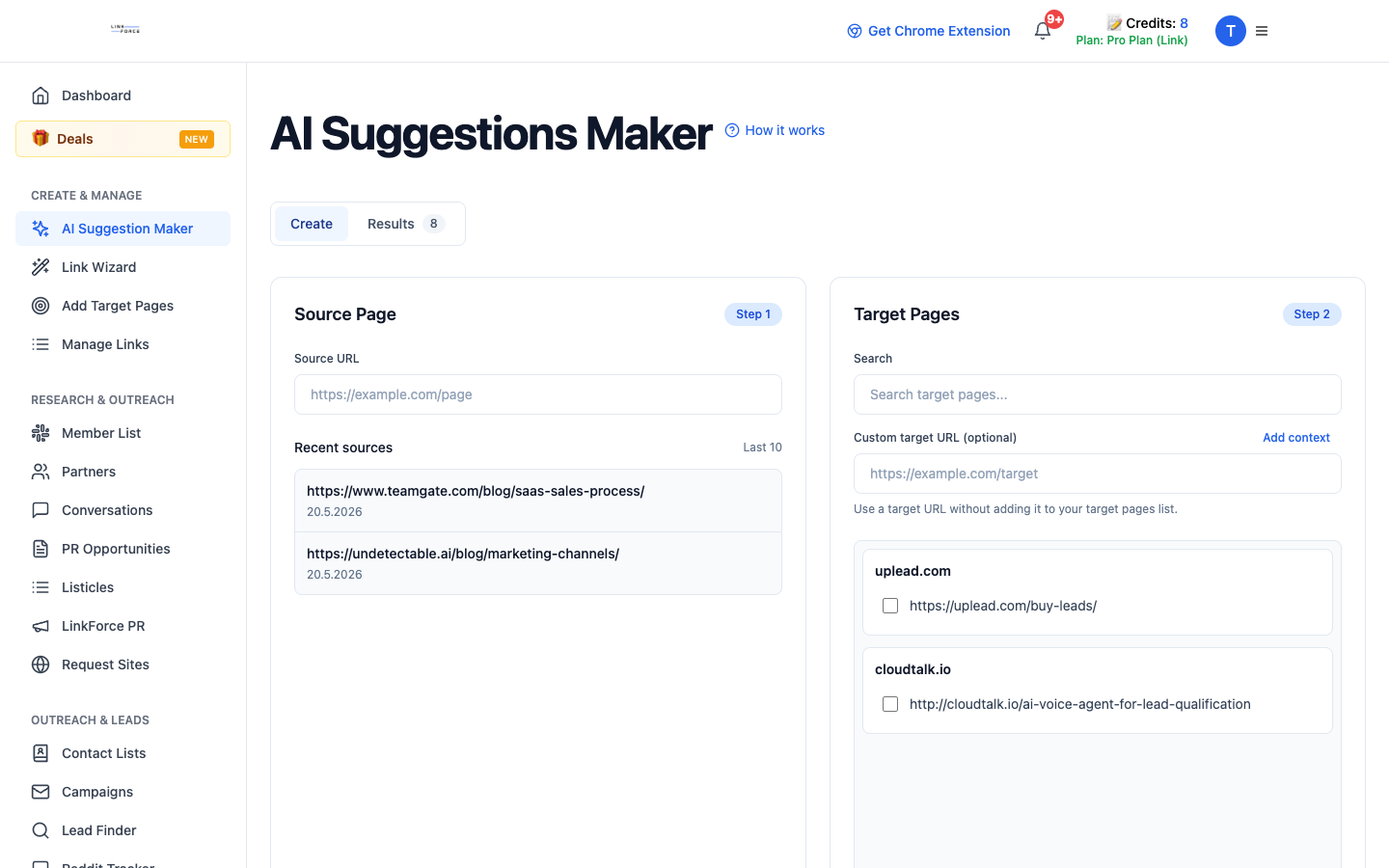
Generate with the AI Suggestion Maker
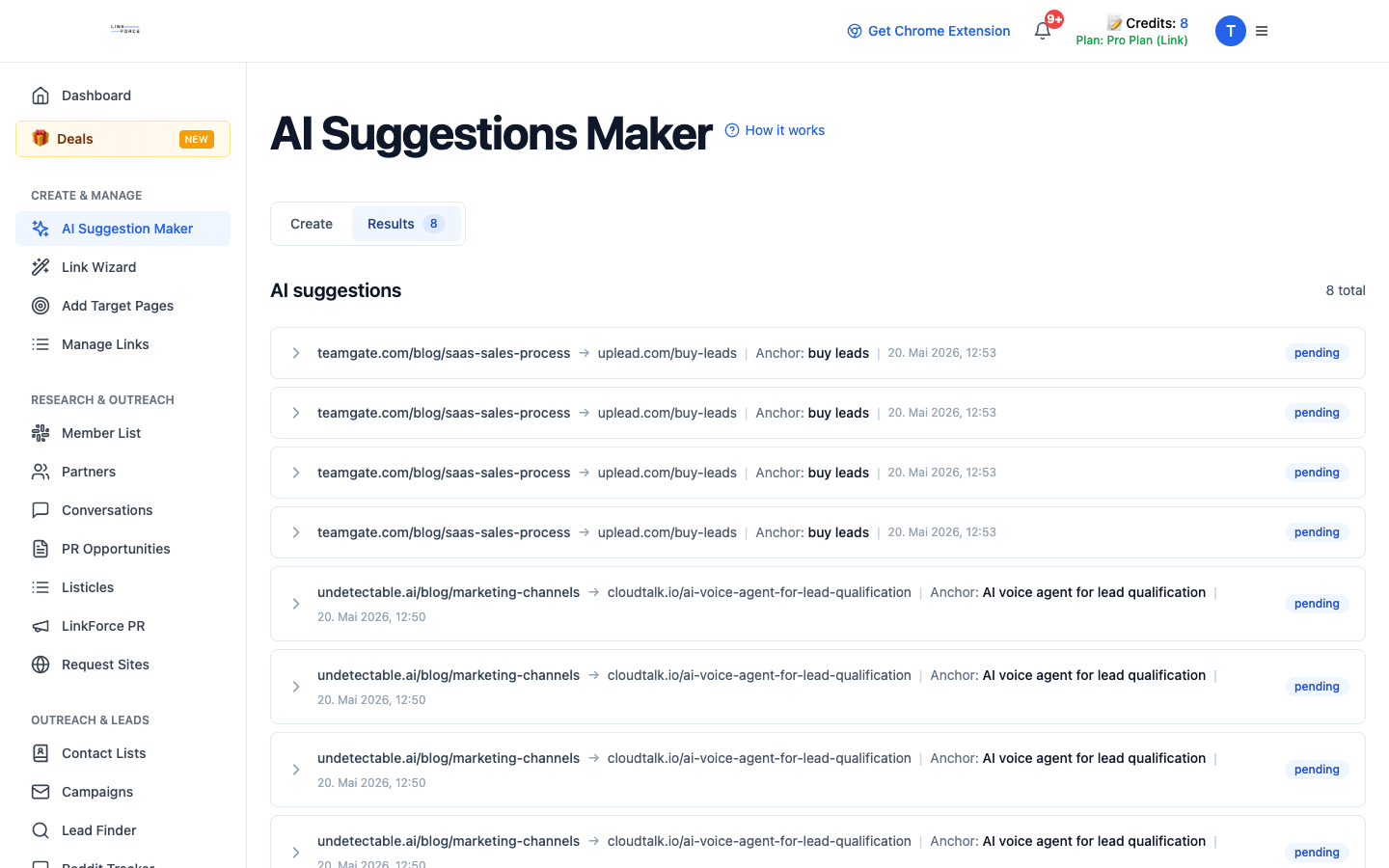
Point the AI at a target page and your focus topics and it surfaces natural placement ideas you can curate.
- Open AI Suggestion Maker and pick the target page you want ideas for.
- Add three to six focused topics to steer relevance.
- Generate, then save only the ideas that meet your quality bar (each run uses one AI credit).
Process in bulk with the Link Wizard
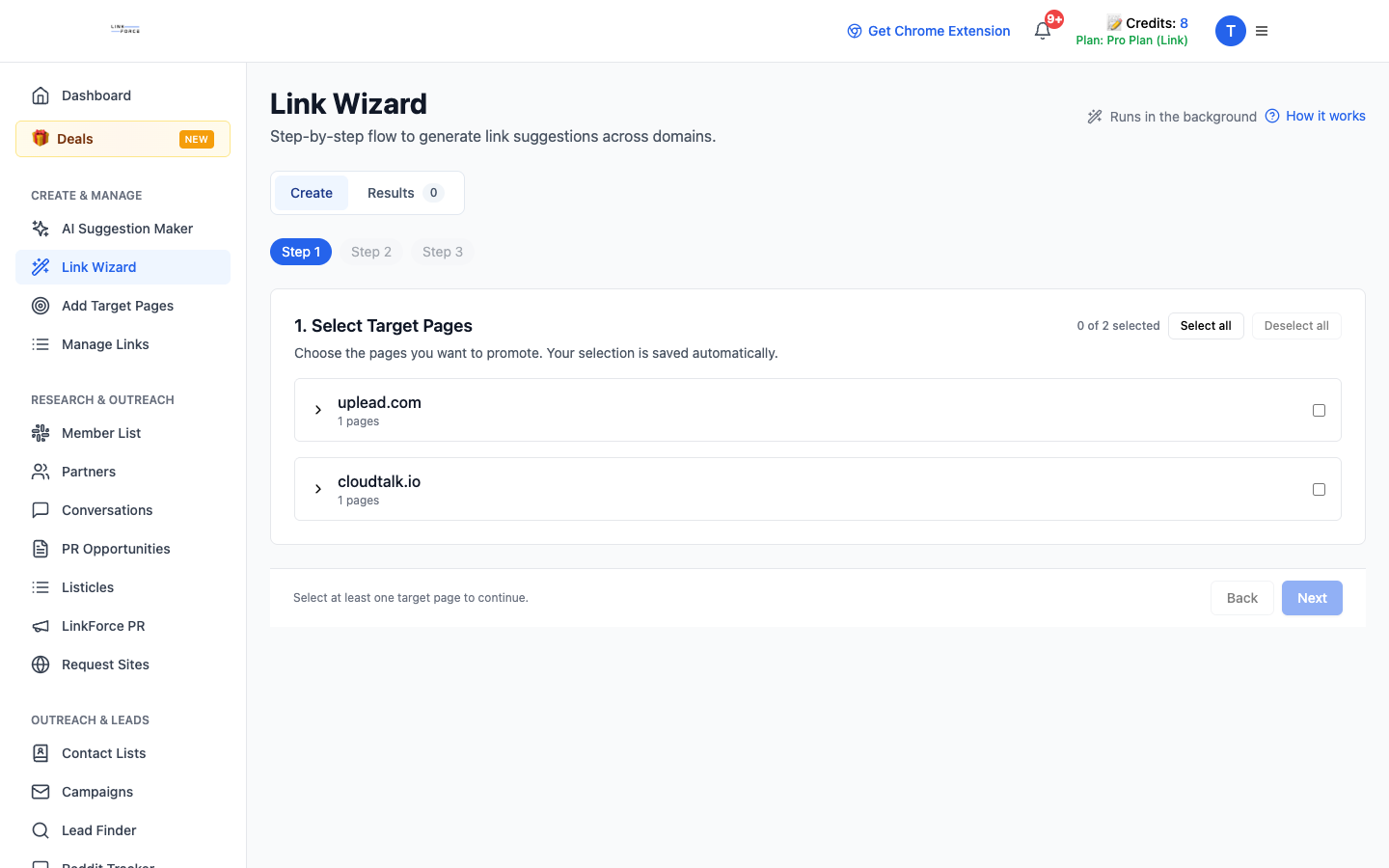
The Link Wizard is the way to create and process suggestions at volume. Choose the pages to promote and it handles the batch end to end.
- Open the Link Wizard and select the target pages you want to promote.
- Let it work through your source pages and propose placements at scale.
- Review the batch and push the strong ones into your pipeline.
Spot placements while you browse
The extension flags opportunities on any page in real time using your target anchors.
- On any page, open the extension Suggestions tab.
- A blue dot marks a placement opportunity (your anchor text appears as plain text).
- A green dot means the page already links to one of your targets. Click any match to scroll and highlight it.

Aim for good placements
The best links sit inside the body, not the intro or headings. LinkForce steers suggestions there for you.
- Prefer body paragraphs in the middle and later parts of an article.
- Keep anchor text natural and the surrounding context obvious.
- Avoid headings, the intro, list labels, captions, and CTAs.
Tap the community
Turn the LinkForce member network into warm outreach.
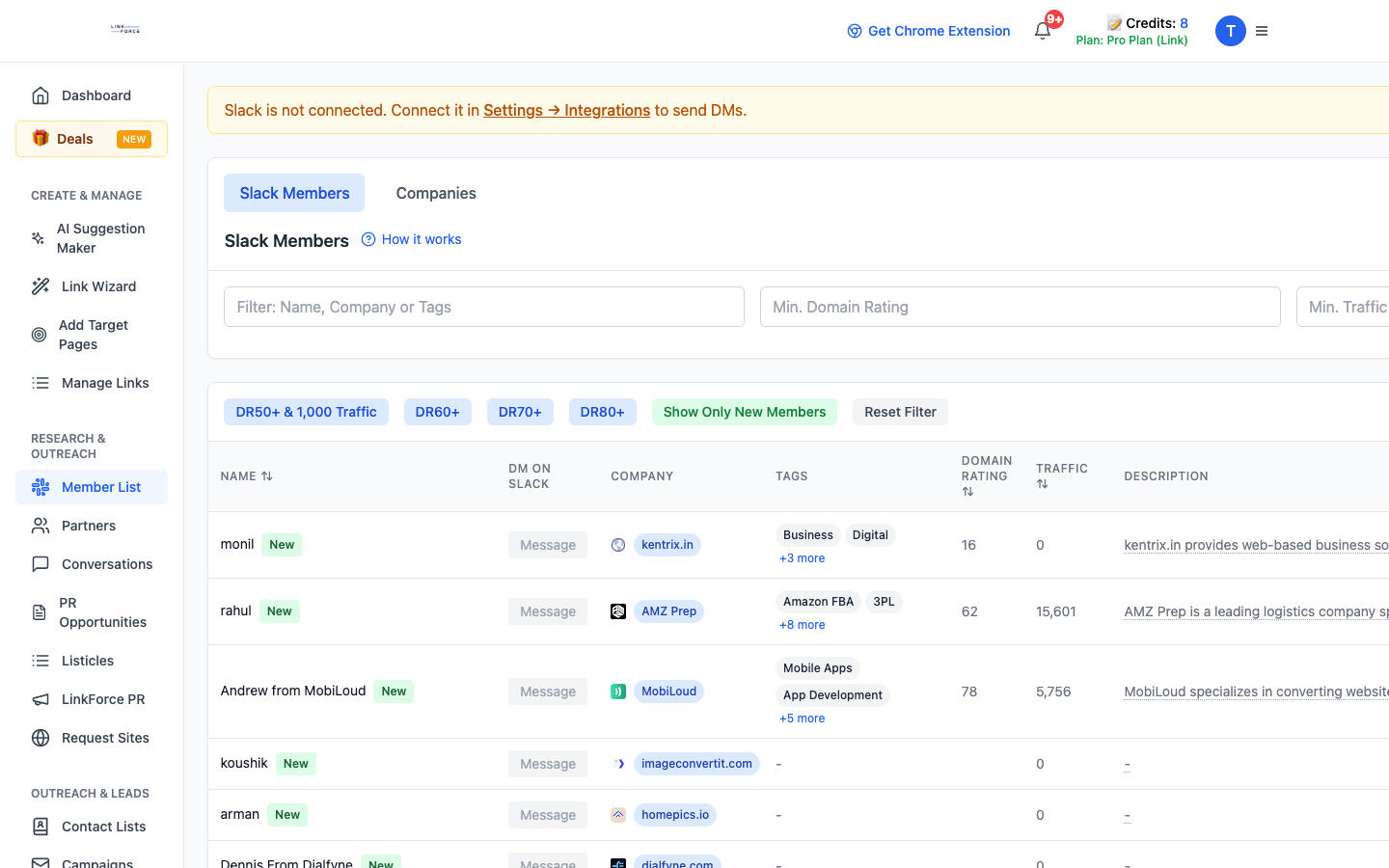
Search the member directory
The Member List is the community directory, synced from Slack, with the company context you need to qualify outreach. Browsing the full directory is a Pro feature.
- Open Member List and filter by domain rating, traffic, or keyword.
- Use quick filters like DR50+ or newer members to focus.
- Message members directly from their profile.
Find members on the site you are viewing
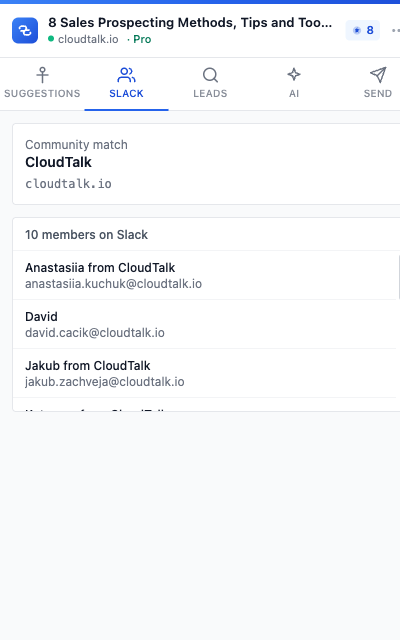
The extension Slack tab tells you whether the domain you are on belongs to a community member.
- On a prospect site, open the extension Slack tab.
- If it matches a community company, it lists the members who work there.
- Reach out to them directly through Slack.
Drive LinkForce from Slack
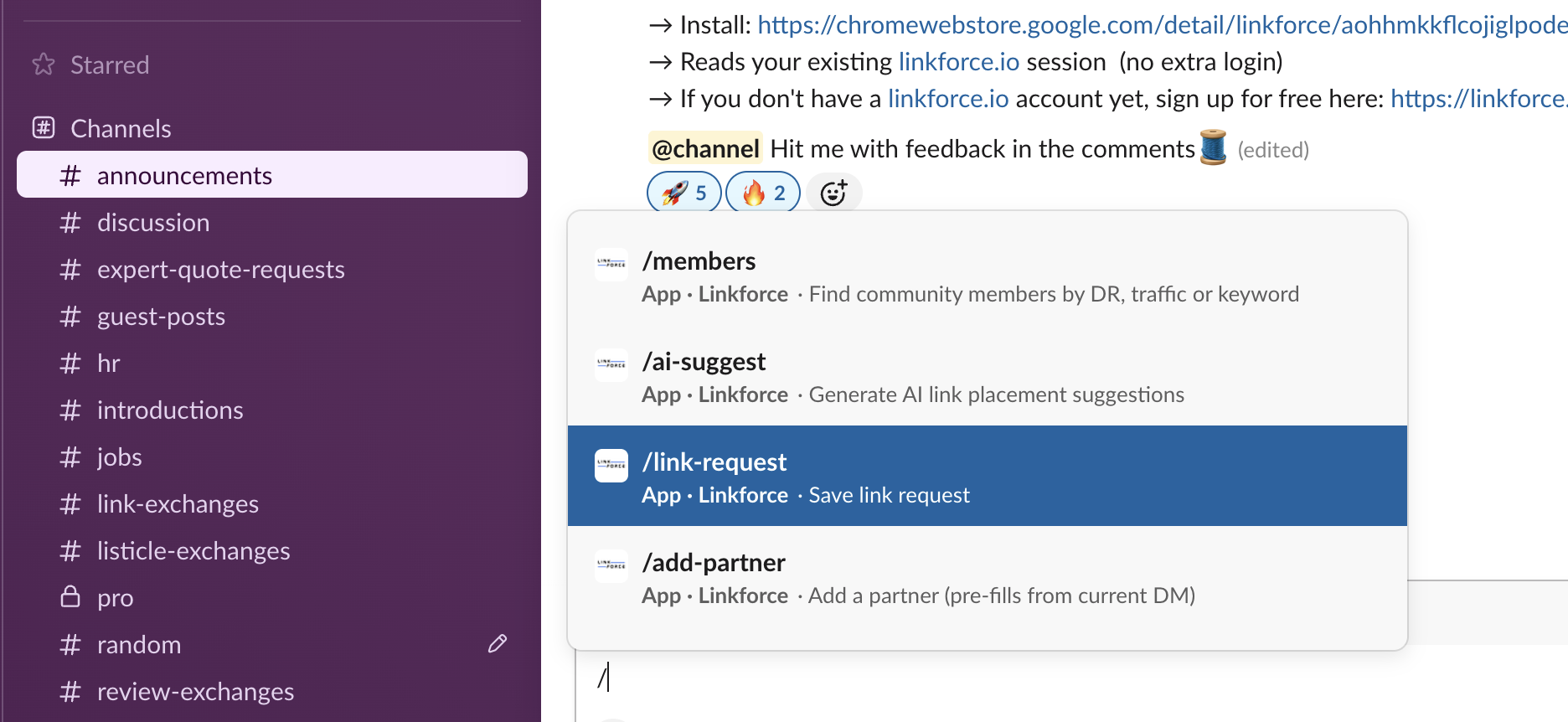
Slash commands let you work without leaving Slack. Everything syncs back to the web app.
- /members: find community members by DR, traffic, or keyword.
- /ai-suggest: generate AI placement suggestions for a target page.
- /add-partner: add a partner (pre-fills from the current DM). /get-partner-sheet: open their tracking sheet.
- /link-request: save a link request. /link-status: update a link status.
Run outreach
From a lead to a tracked conversation, without leaving LinkForce.
Set up partners and partner sheets
Partner profiles keep all outreach context in one place. The partner sheet shows related links, conversations, and history.
- Create a partner under Partners, or add one from Slack with /add-partner.
- Capture the primary contact, tags, and relationship notes.
- Open the partner sheet before reaching out to avoid duplicate contact.

Build contact lists and campaigns
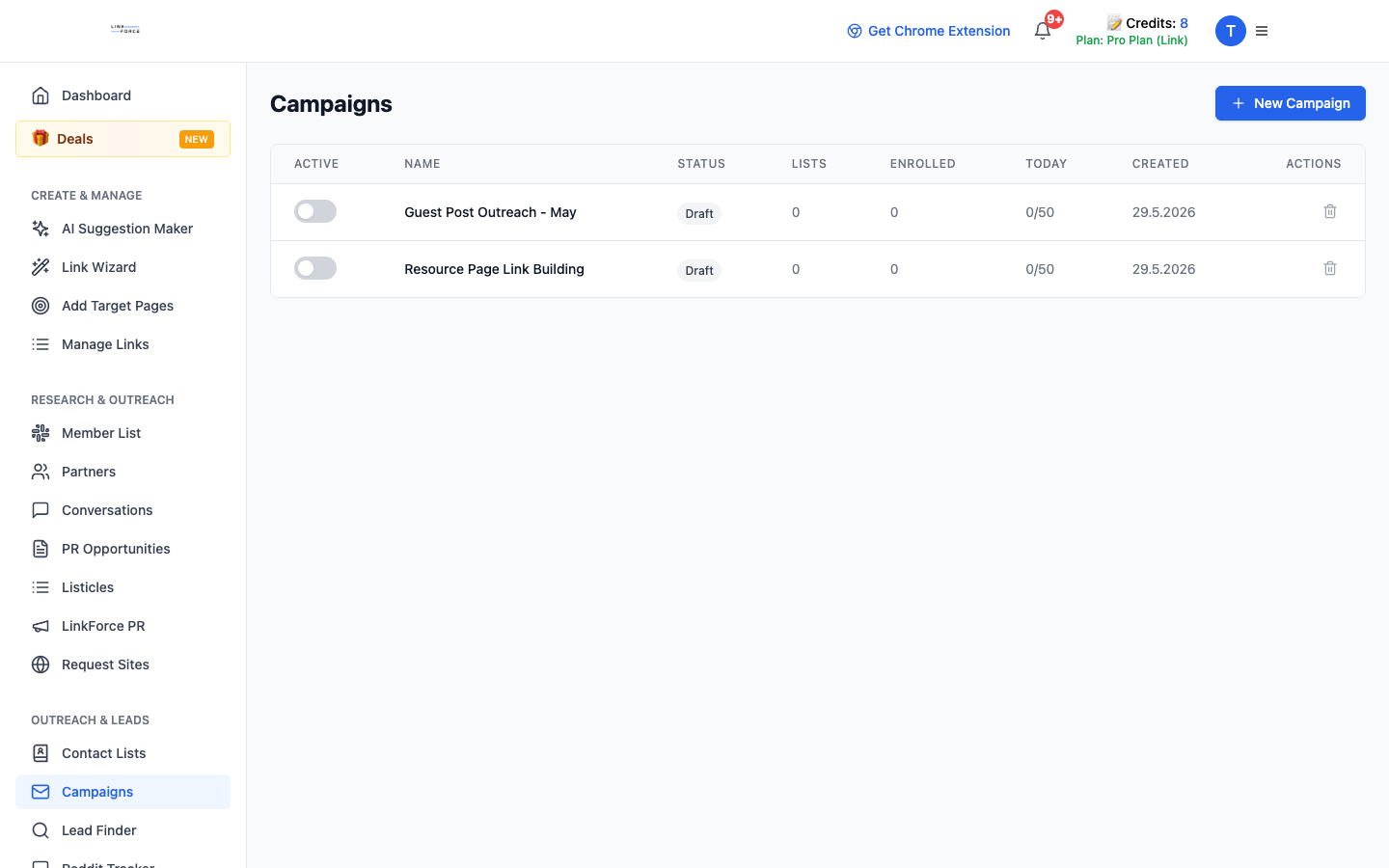
Group the people you want to reach and run multi-step outreach with tracking.
- Build a contact list (or import one from Lead Finder).
- Create a campaign and define the steps.
- Track progress as replies come in.
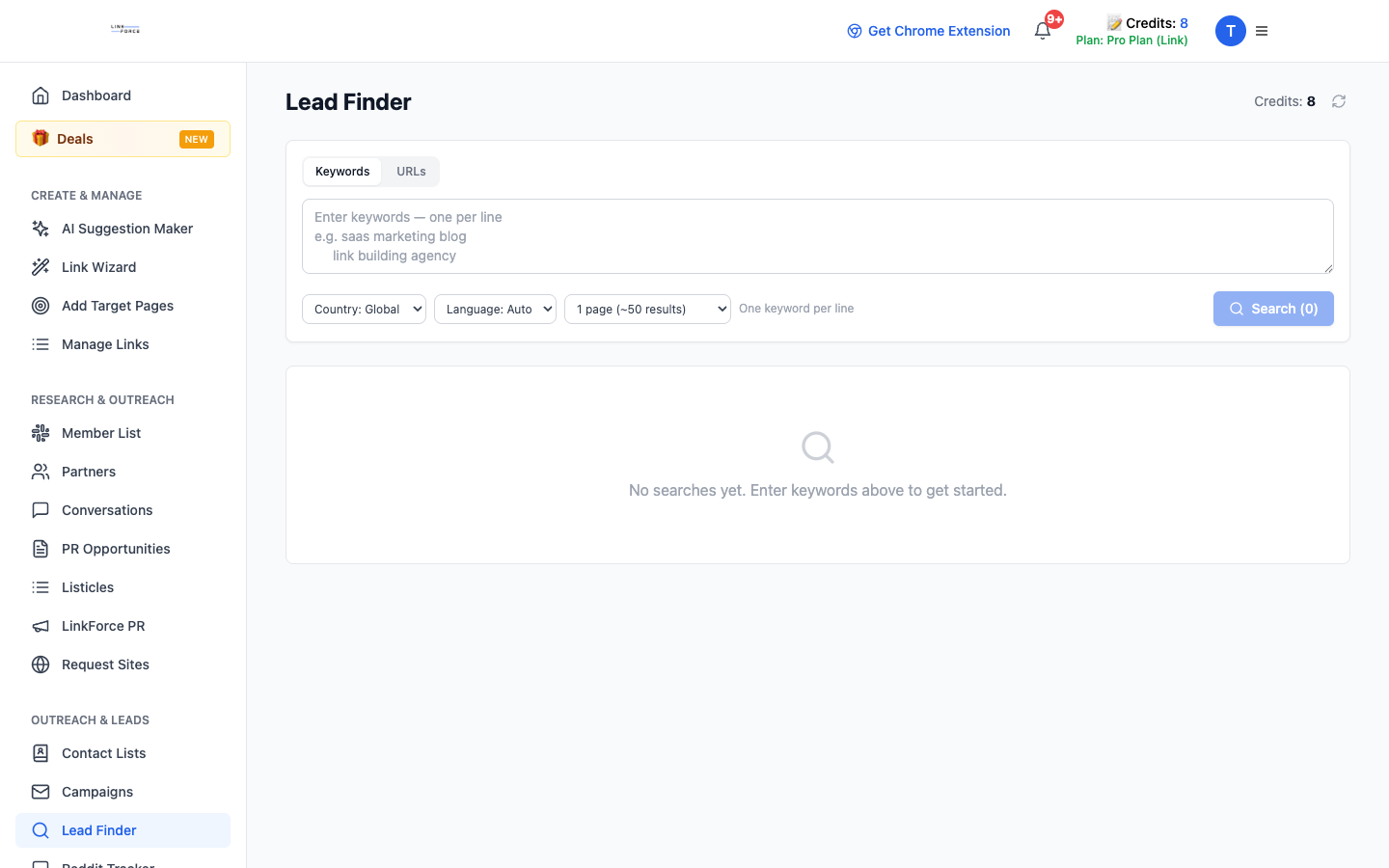
Find emails with Lead Finder
Lead Finder discovers and enriches contact emails for the sites you want to reach (a Pro feature). The extension Leads tab does the same on the page you are viewing.
- Open Lead Finder and search the sites you are prospecting.
- On the fly, use the extension Leads tab to harvest emails off the current page.
- Feed results into your contact lists and campaigns.
Connect email and send
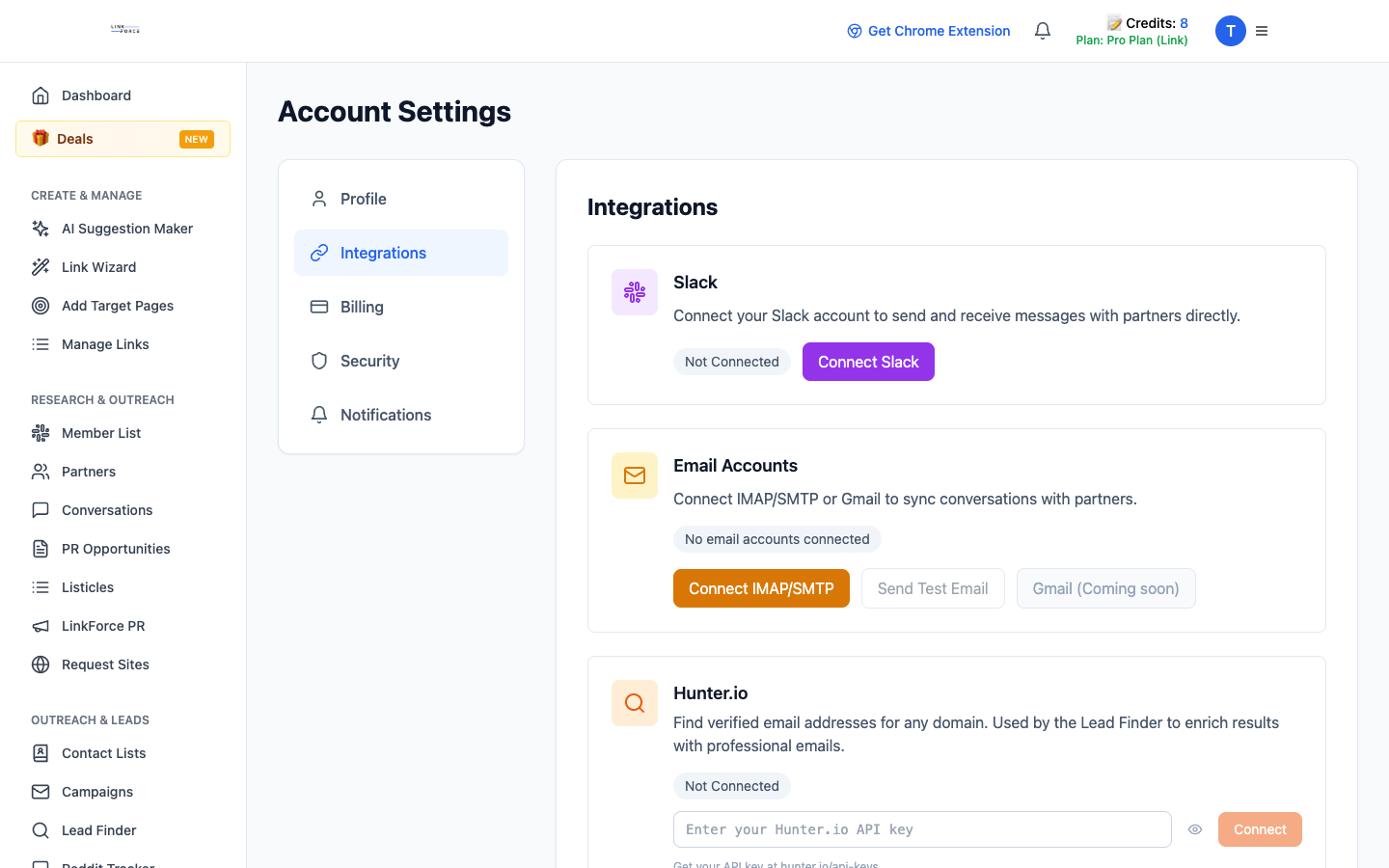
Connect an email account so sends and replies are logged centrally, then send outreach without opening your inbox.
- In Account settings, connect Gmail or a custom IMAP/SMTP account and test it.
- Use the extension Send tab to email a discovered contact about a target page.
- A daily send limit applies; Send is available on Pro.
Track conversations
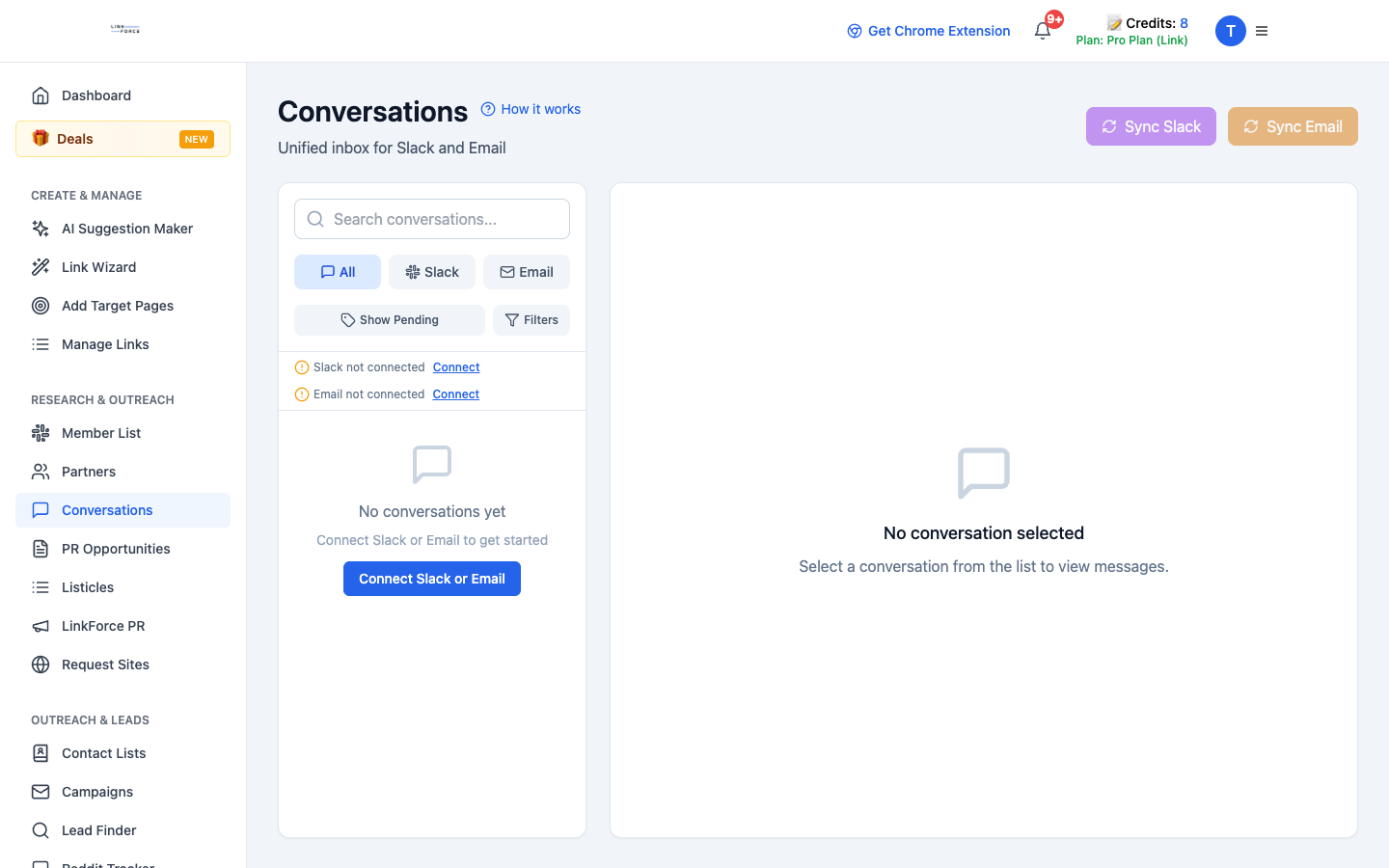
Conversations keep every outreach thread, status, and follow-up date in one view.
- Update the status after each reply.
- Set follow-up dates for pending responses.
- Link conversations to partners for a full history.
Track and report your links
One place for every given and received link, with clear statuses.
Log links in Manage Links
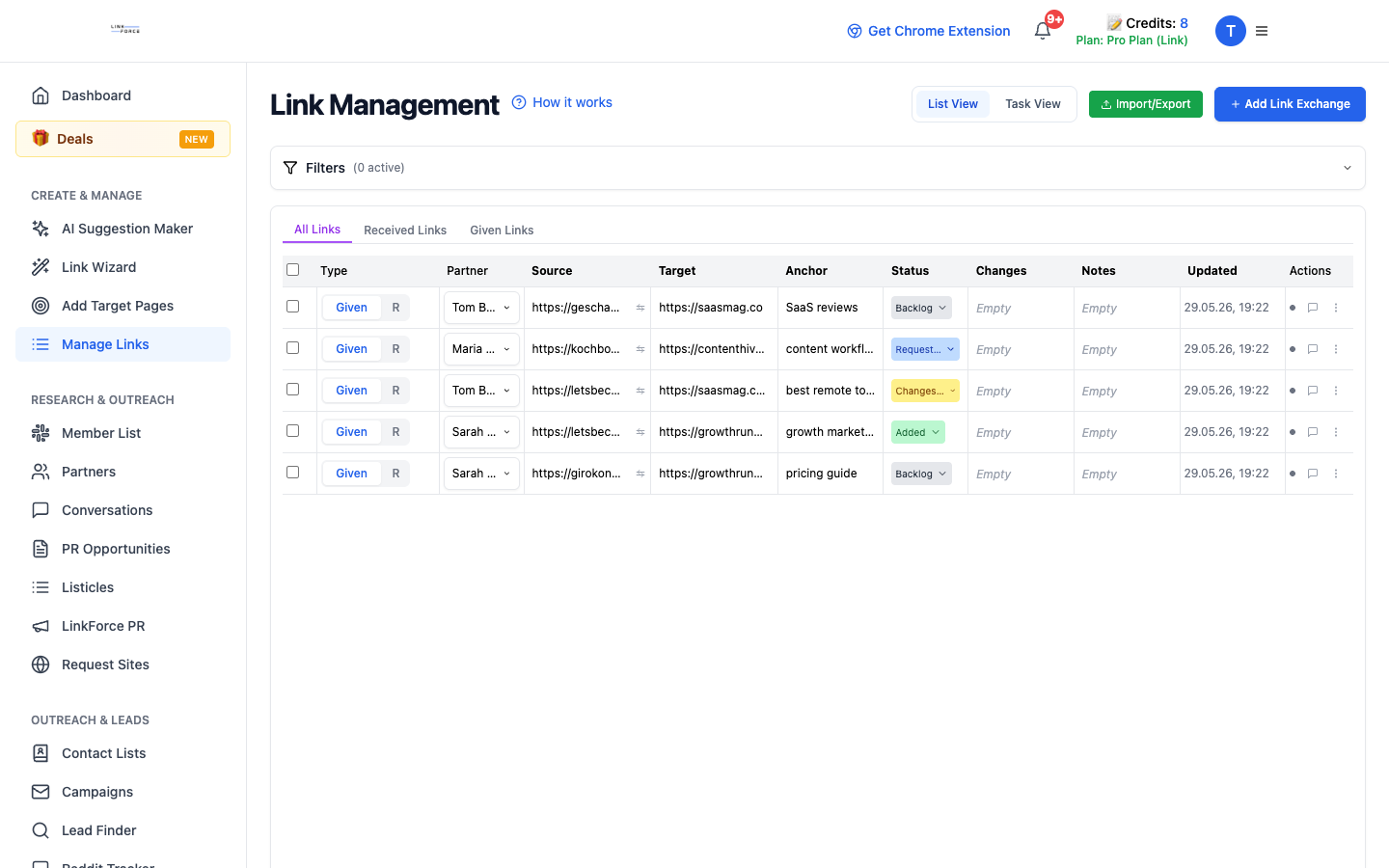
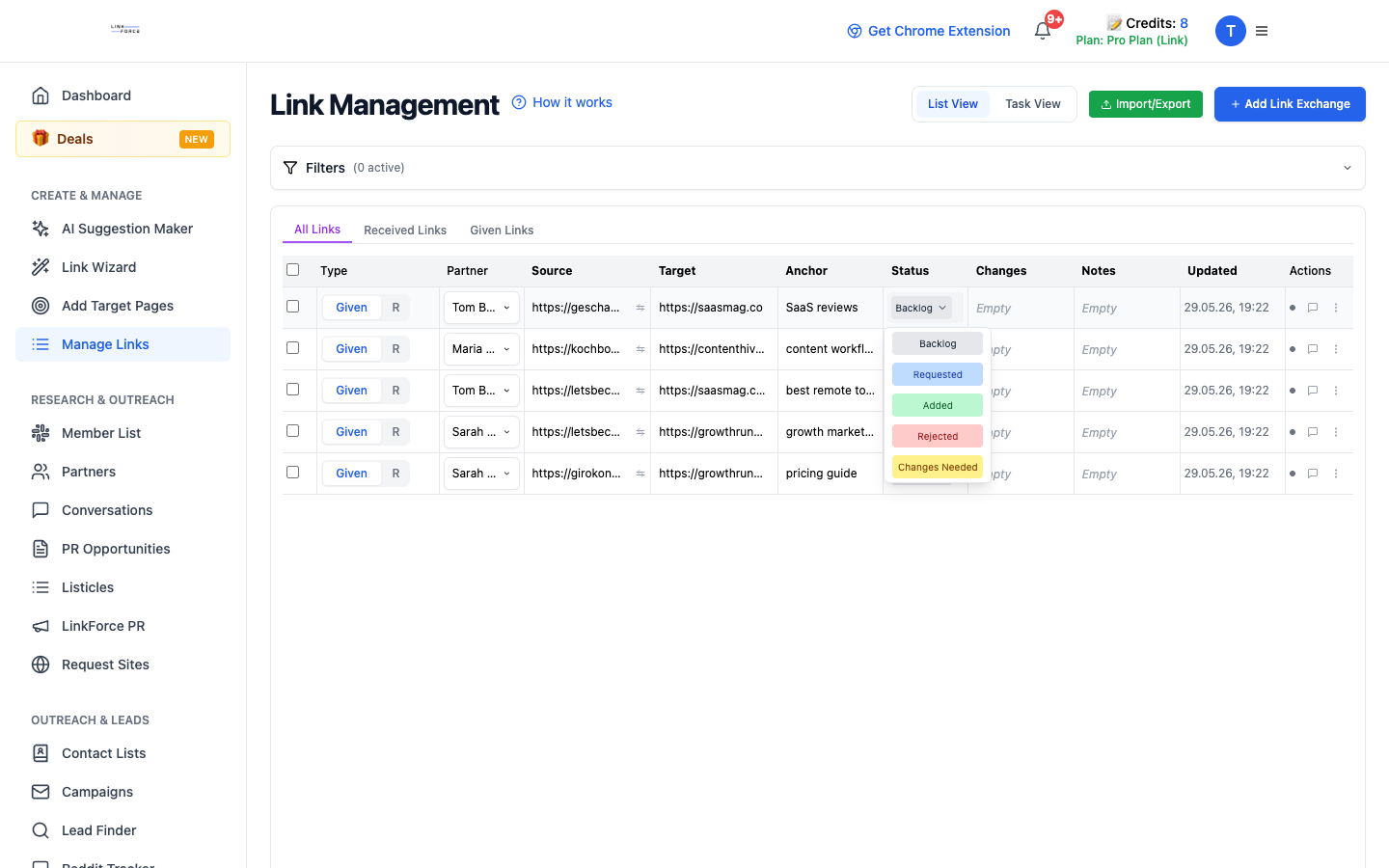
Manage Links tracks the links you give and the links you receive, so you can see your exchange balance at a glance.
- Add each placement with its source URL, target URL, anchor, and notes.
- Separate given links (you provide) from received links (you earn).
- Use comments to record updates and keep an audit trail.
Keep statuses current
Statuses make pipeline progress visible across the team. Update them in the app or with /link-status in Slack.
- Backlog (not started), Requested (outreach sent), Added (live), Rejected, Changes Needed.
- Move links forward as things change so reporting stays accurate.
Import and export in bulk
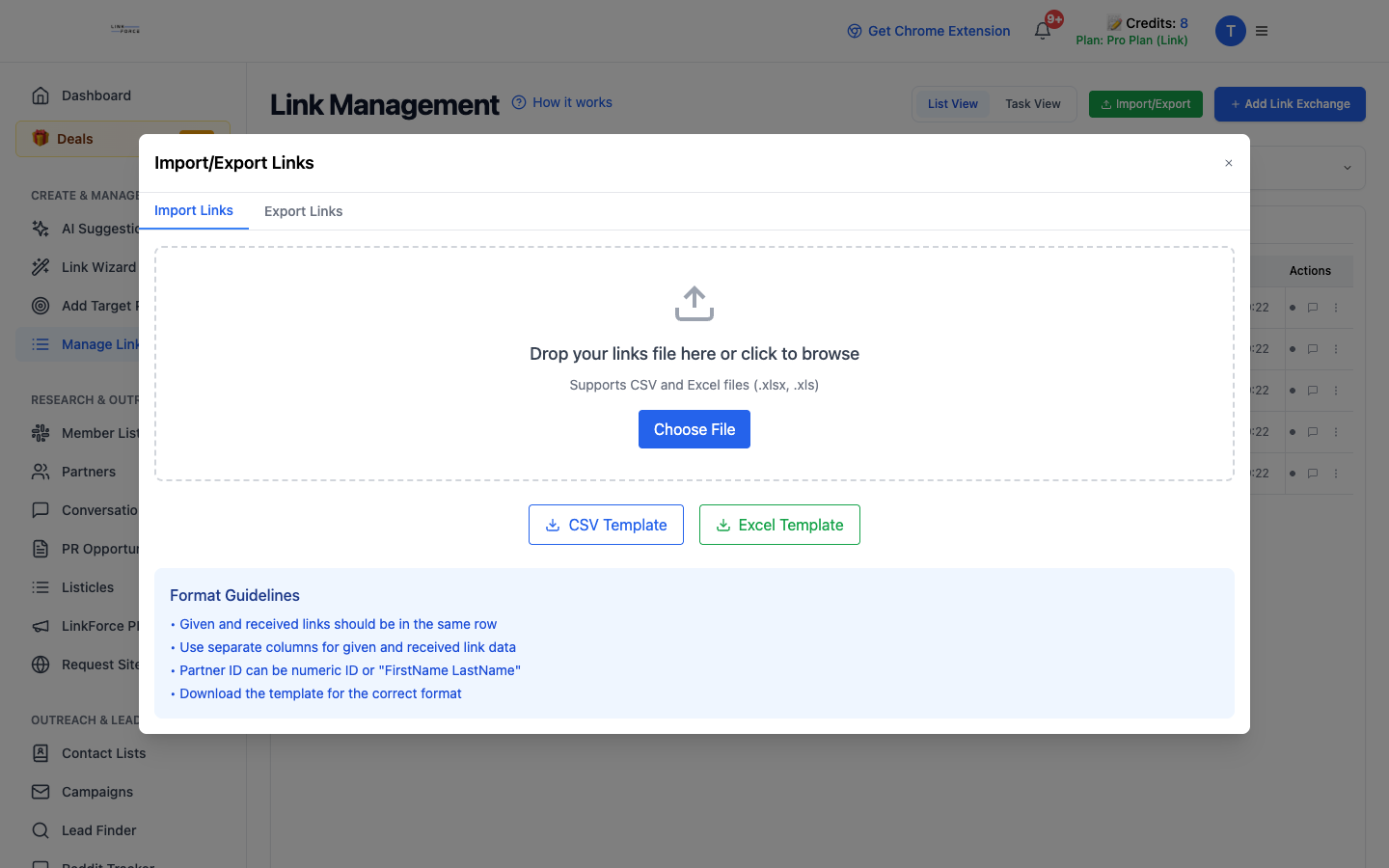
Bring links in or pull them out for migrations, partner reporting, or weekly rollups.
- Use bulk import/export for both given and received links.
- Keep column names consistent with the template and review imported rows.
Extra opportunity engines
PR, listicles, Reddit, and site requests, mostly Pro features.
Work PR Opportunities
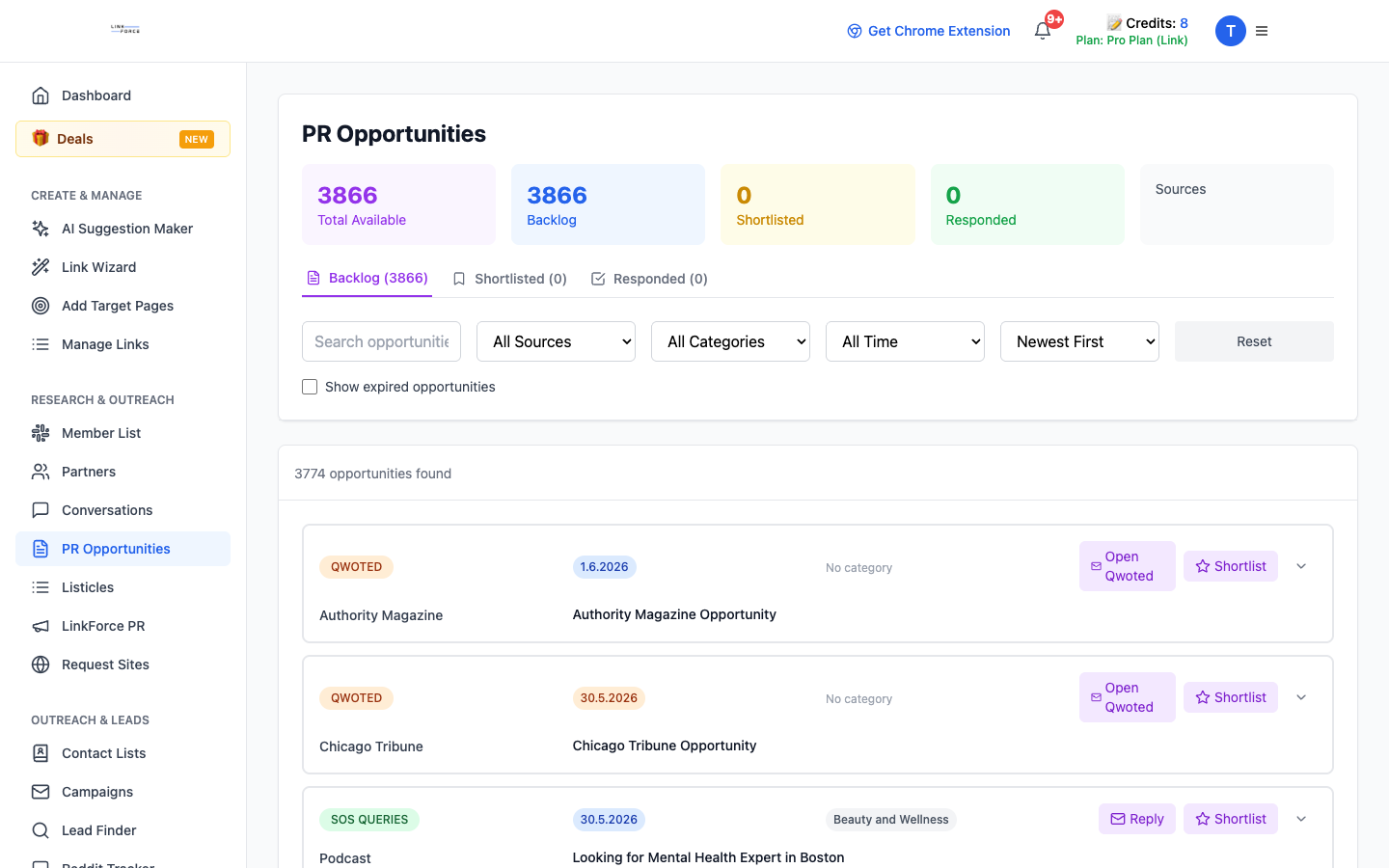
PR Opportunities pulls in journalist requests (HARO, Qwoted, and more) you can filter, shortlist, and respond to.
- Filter the backlog by source, category, and time.
- Shortlist the relevant ones, then reply straight from LinkForce.
- Secured placements move into Manage Links.
Track listicle roundups
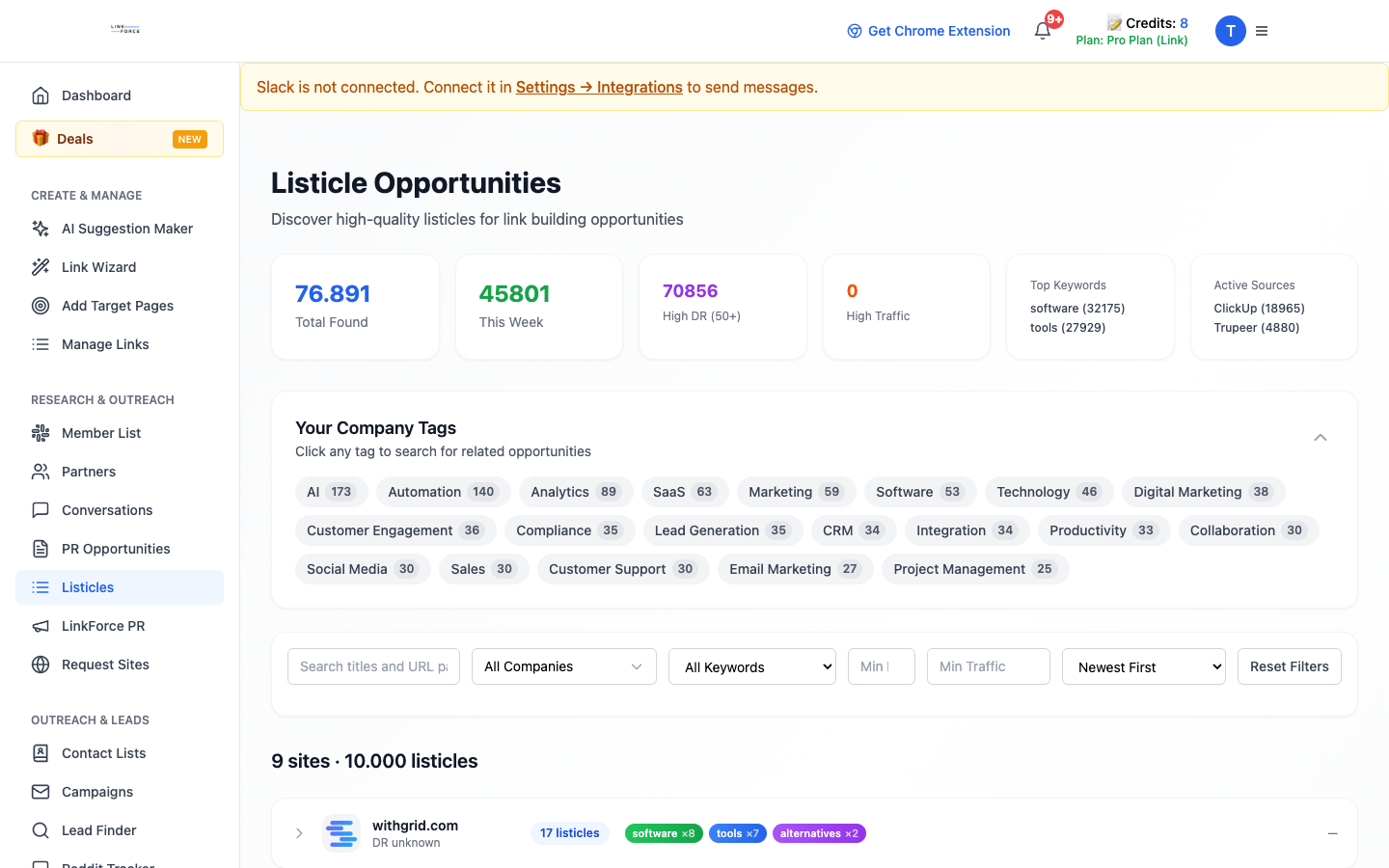
The listicle database lets you track research, outreach, and placement status for best-of roundups you want to be included in.
- Track each listicle from research through to placement.
- Store editorial guidelines and prior contact in notes.
Watch Reddit for openings
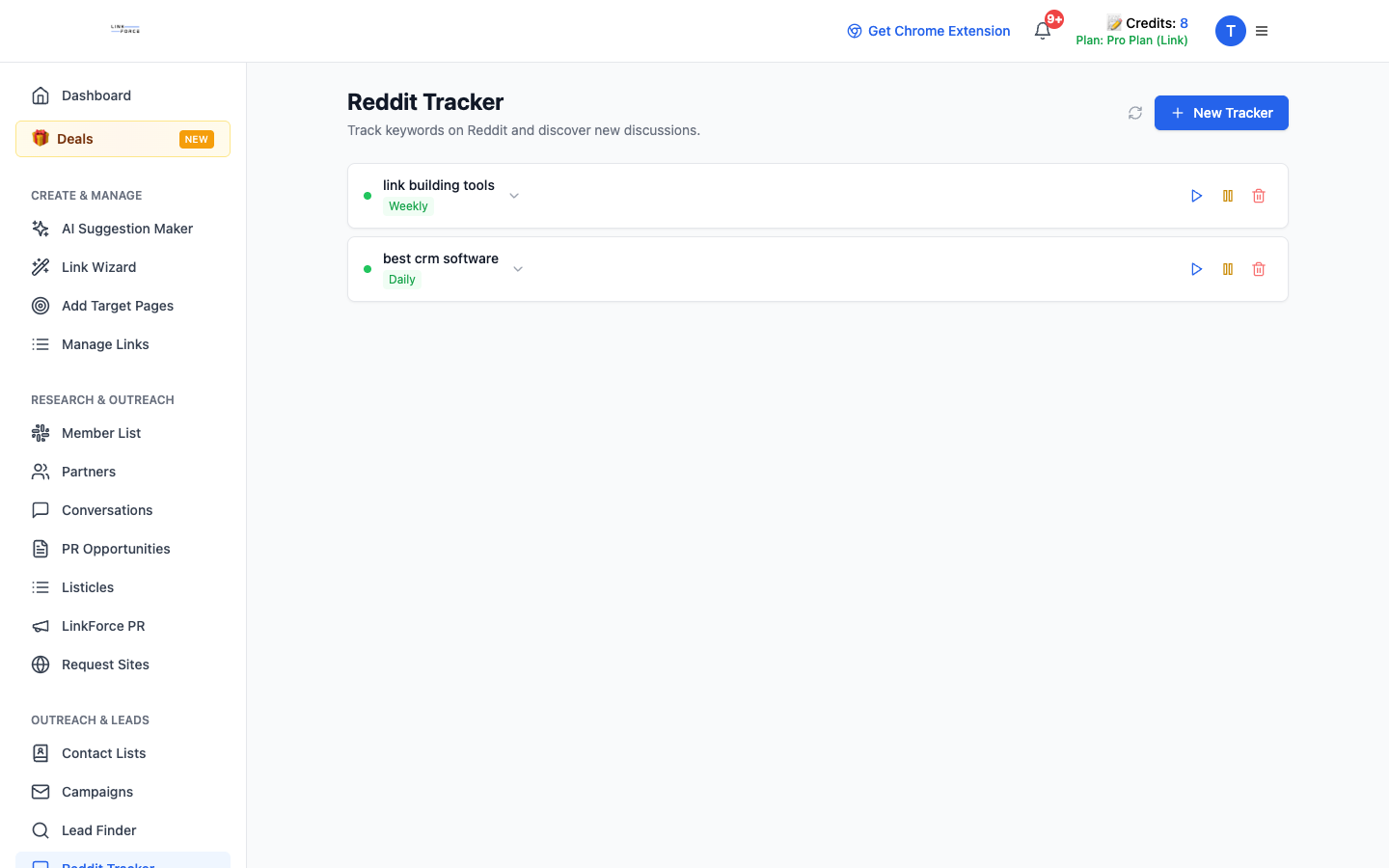
The Reddit tracker monitors keywords on Reddit and surfaces threads where a link or mention could fit naturally.
- Create a tracker with a keyword and a frequency (daily, weekly, monthly).
- Optionally add a product keyword to highlight threads that mention you.
- Run it manually or let the schedule do it; review the matches.
Request new sites
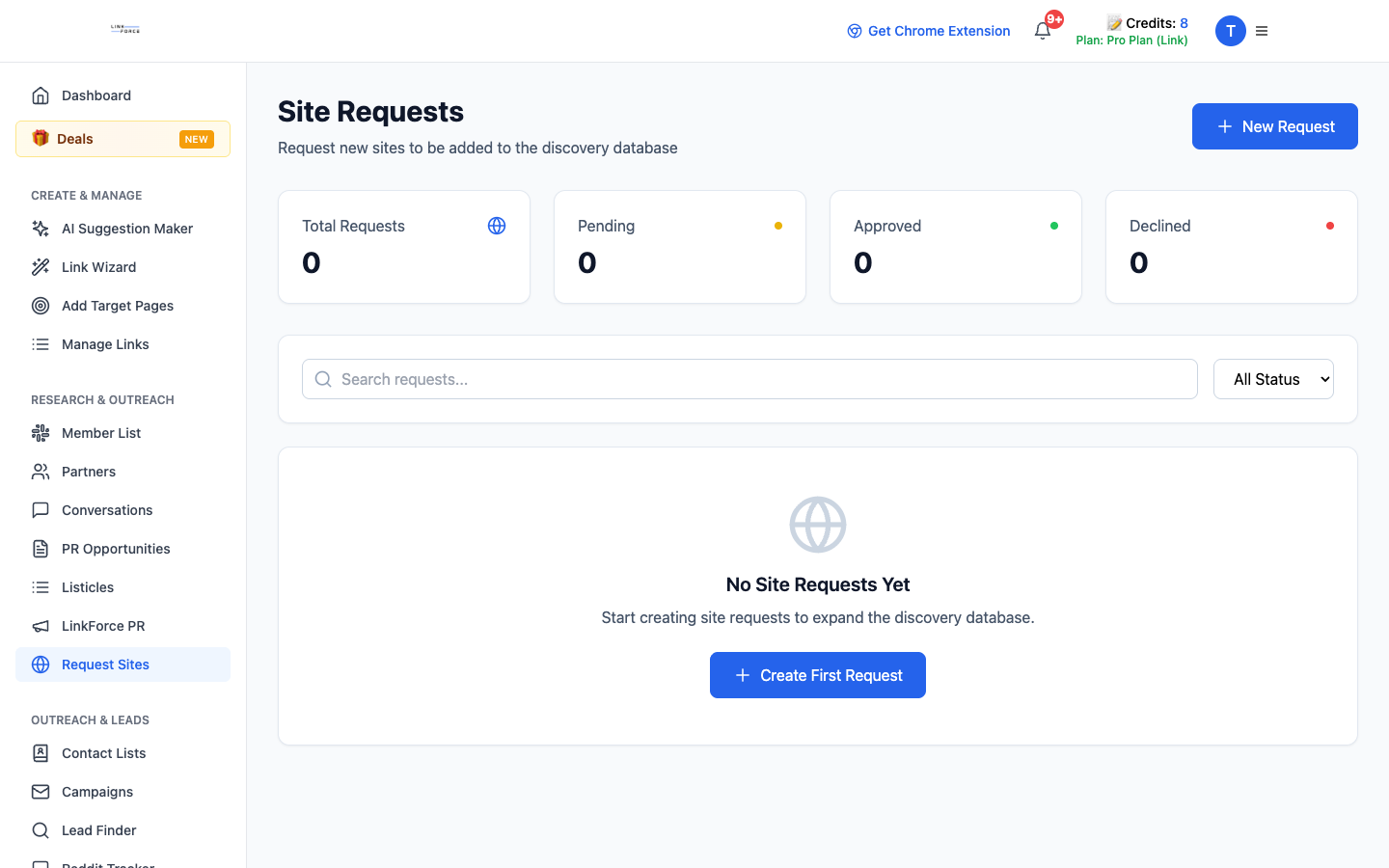
Site requests let you ask the community to approve new partner sites and track them to approval.
- Submit a site with a clear rationale.
- Search first to avoid duplicates, then convert approved sites into partners.
Make it a routine
A repeatable rhythm that compounds links over time.
Run the weekly loop
The whole platform is one loop: targets, suggestions, outreach, tracked links. Keep it turning.
- Daily: scan the dashboard, action new suggestions, update link statuses.
- Weekly: add or refresh target pages, run a Link Wizard batch, follow up on conversations.
- Use Slack commands for quick capture between sessions.
Upgrade when you scale
When you are working at volume, Pro removes the credit and feature limits.
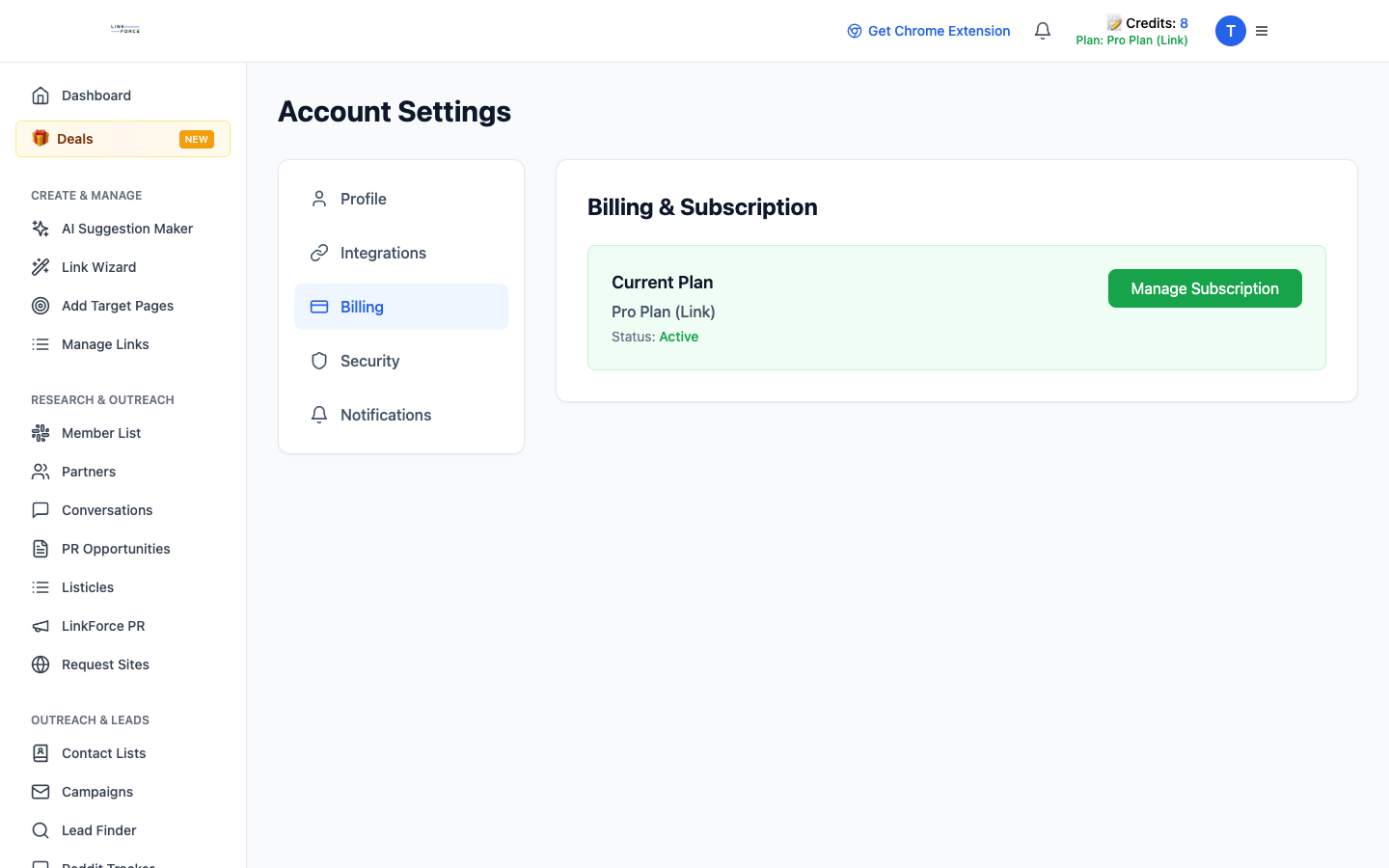
- Upgrade from the Pricing page or Account settings.
- Pro unlocks 1,000 AI credits, the full member directory, Lead Finder, the listicle database, site requests, and the Reddit tracker.
Slack command cheat sheet
/membersFind community members by DR, traffic, or keyword/ai-suggestGenerate AI link placement suggestions for a target page/link-requestSave a link request to your pipeline/add-partnerAdd a partner (pre-fills from the current DM)/get-partner-sheetOpen a partner's tracking sheet/link-statusUpdate a link's statusFree vs Pro
Start building links the LinkForce way
Create your free account and work through Part 1 in five minutes.
Get started free